Maya tutorial
The Maya submitter is a plugin node that allows you to configure and submit jobs to Conductor from its attribute editor.
This tutorial will get you up and running. For a detailed description of the plugin, please check the Maya reference page.
If you haven't already done so, Download the Companion App.
- Open the Companion app on the Plugins page and install the Maya plugin.
Load the Plugin
- Load the Conductor.py plugin from the Plugin Manager. A Conductor menu appears in the main window. If you don't see the plugin, go to troubleshooting.
Set up a submission.
- Open the scene you want to render and open the submitter dialog.
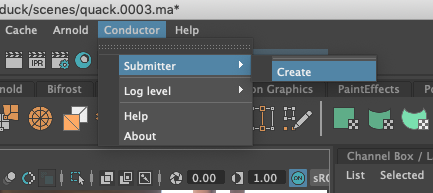
- Choose Submitter->Create from the Conductor menu.
The attribute editor pops up and attempts to connect with Conductor. If successful, the submit button becomes enabled; otherwise, you can use the Reconnect button later.
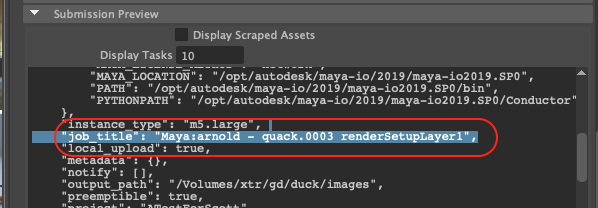
- Set a title for your job to show up on the Conductor dashboard when you submit. The default title is
Maya:<Renderer> - <Scene> <RenderLayer>and should work fine most of the time. If you check the Submission Preview section of the attribute editor, you'll see the resolved value.
-
Once connected, choose a suitable machine from the Instance Type drop-down menu.
-
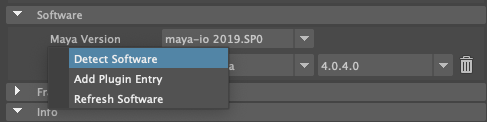
In the Software section, right-click over the label for Maya version and choose Detect Software.
If you have a renderer plugin loaded, you'll see a new menu group appear that should represent the correct version of the render plugin. You can also add non-renderer plugins that Conductor supports with the Add Plugin Entry button.
Frame range
If you don't use a custom frame range, then the frames to render are those in Render Settings. In that case, you should make sure to enable animation by choosing a filename format that contains hashes. You can check the Info section to make sure the frames and tasks are correct.
Validate and Submit
Before you submit your job, we check the scene to ensure there's nothing that could cause the render to fail. You should also check the raw submission configuration in the Submission Preview section.
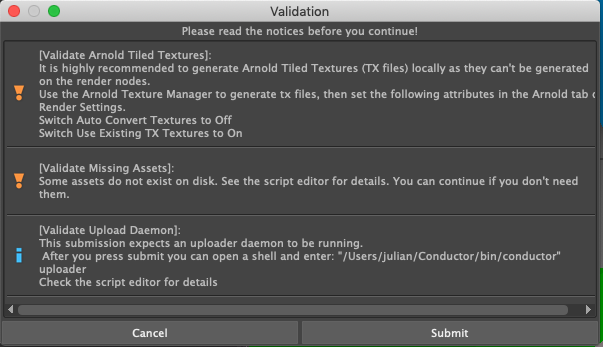
If the submission is invalid, errors appear in the script editor, and the submission is aborted. Most validations, however, produce warnings or info notices. In this case, you'll see a dialog window with the issues listed, and you can continue with the submission.
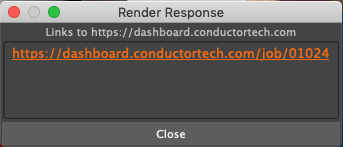
If there are no submission failures, a dialog appears with links to monitor the job(s) on the Conductor web dashboard.
Download finished files
As tasks finish, you can download your images via the command-line tools or open the Downloader page in the Companion app.
Done
Be sure to visit the Maya reference page for more info.
Upgrade the Plugin
Upgrades become available for our plugin offering to support the latest Maya versions. There are two main methods to upgrade the Conductor for Maya plugin. Ensure Maya is closed before upgrading for best results.
Companion App
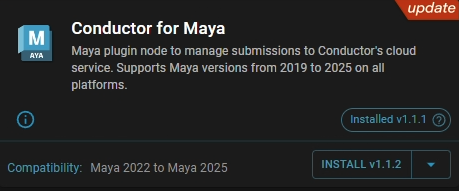
Express install the plugin upgrade through the Companion App. A banner should appear in the top right corner to indicate there is an update available.
Click the INSTALL button on the bottom, right-hand side. The Companion App seamlessly handles installation on behalf of the user.
PyPi
For advanced users, the ciomaya repo is available on PyPI. Visit Conductor for Maya for details.
To install the latest version.
pip install --upgrade ciomaya --target=$HOME/Conductor/maya
To install a specific version, for example 0.1.0.
pip install --upgrade --force-reinstall ciomaya==0.1.0 --target=$HOME/Conductor/maya
Then setup the Maya module.
python ~/Conductor/maya/ciomaya/post_install.py